Import an App Preset or Backup File
Use this workflow to import a preset or backup file that you exported from AttendFlow. This can be useful for situations like:
- Setting up a new computer with your existing presets.
- Restoring data after a reset or if data was cleared by Zoom.
- Importing presets that a teammate shared with you.
A backup/preset file is always in JSON format and contains an entire copy of the app data at the time of export.
- Go to the Settings Panel and click on “Other Settings”.
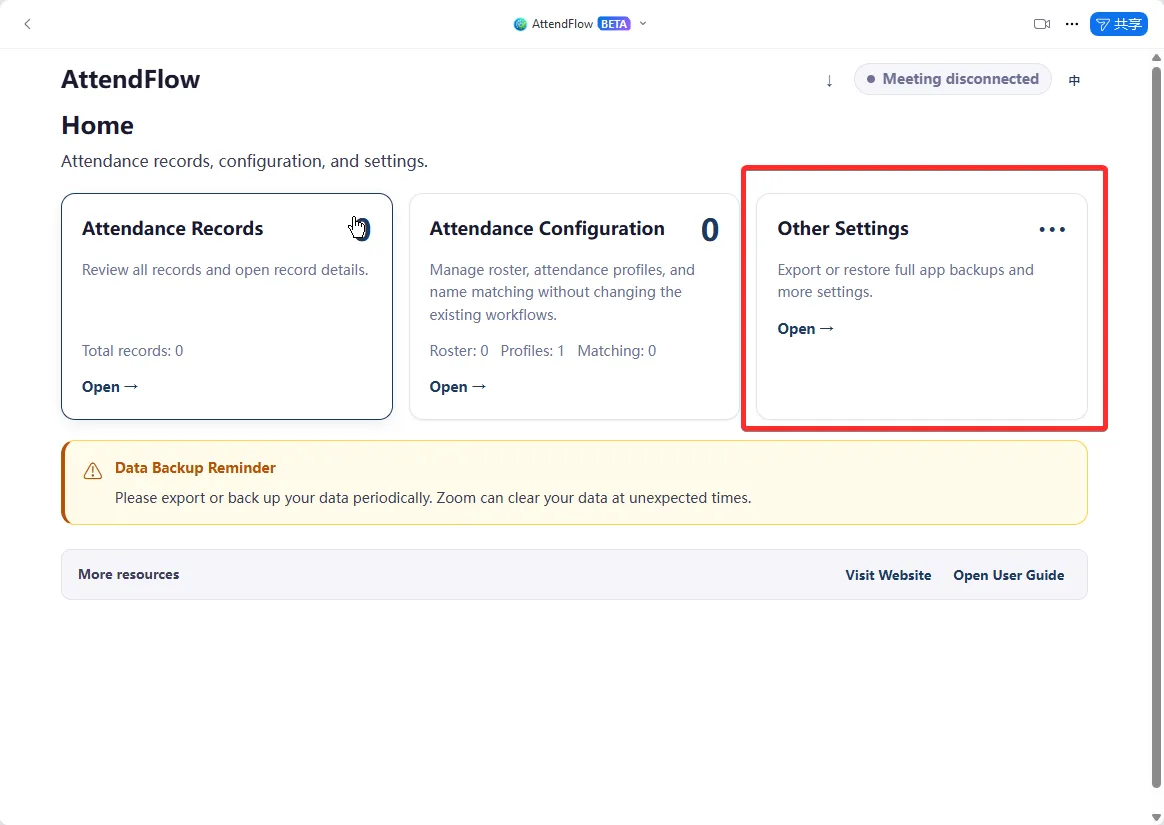
- Under “Restore Full Backup”, click “Open Restore Panel”.
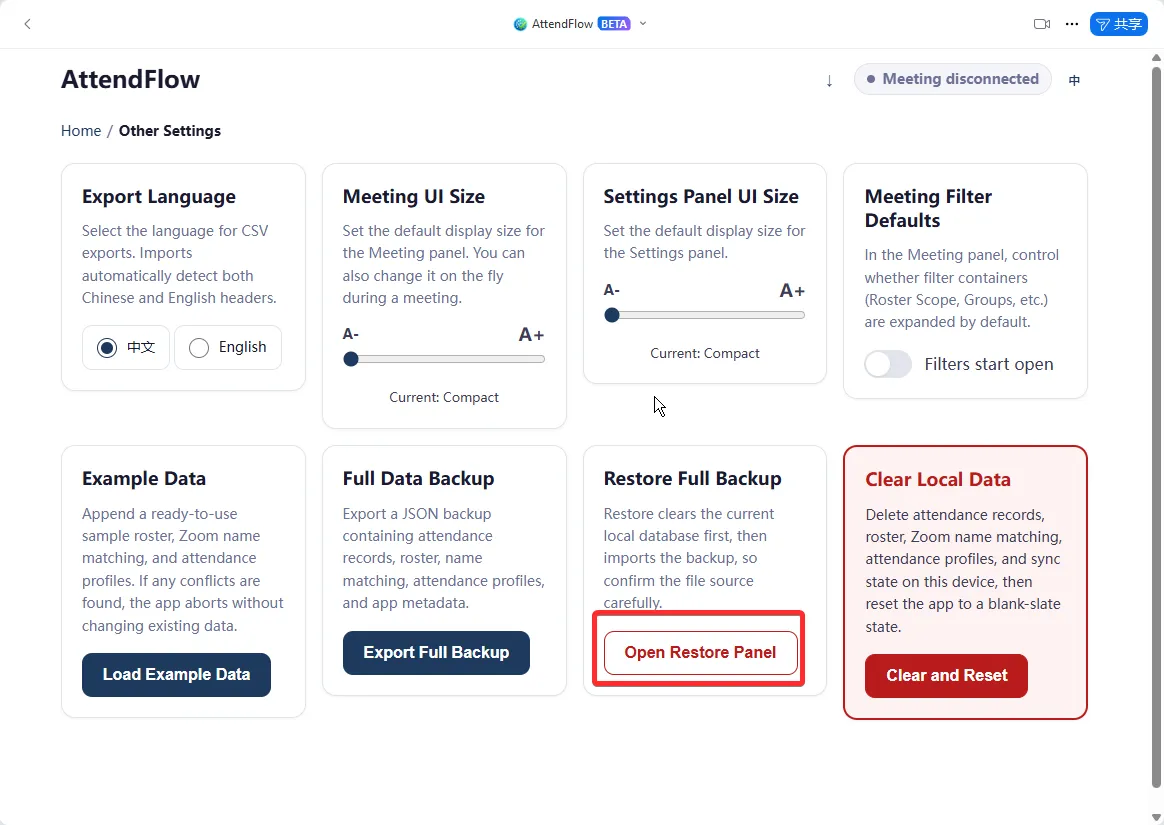
- Click “Choose File” and select the JSON file you want to import.
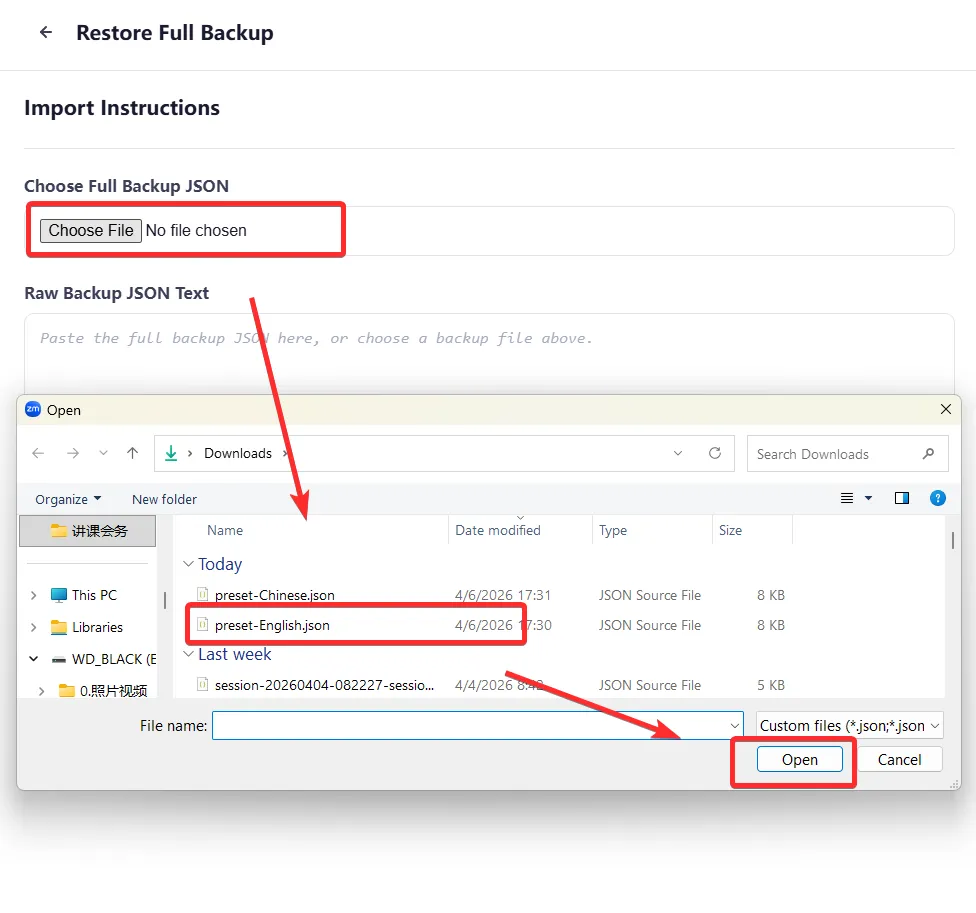
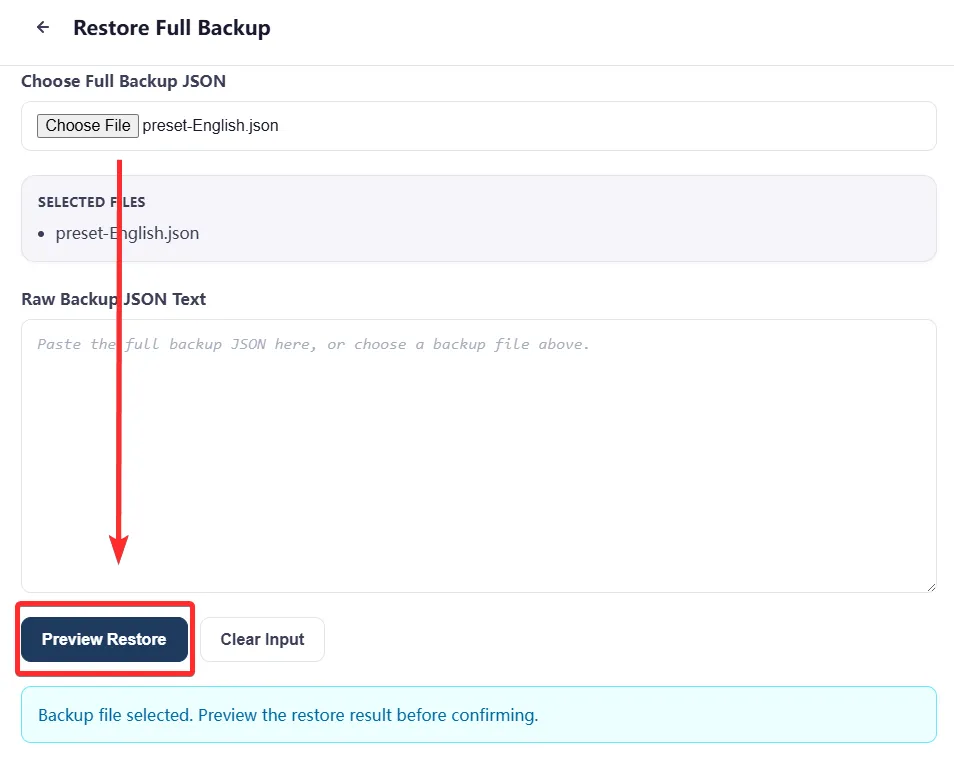
- Click “Preview Restore”, and review the data summary to confirm it contains the expected data.
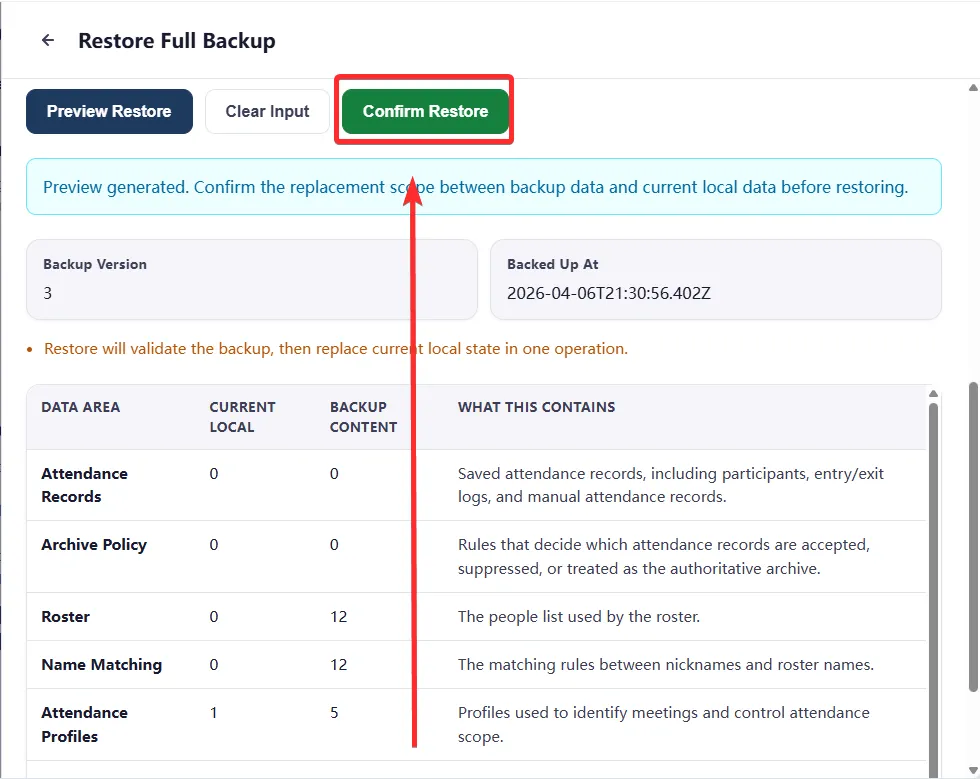
- Click “Confirm Restore” to import the backup or preset file.
You should see a success message after the import is complete.
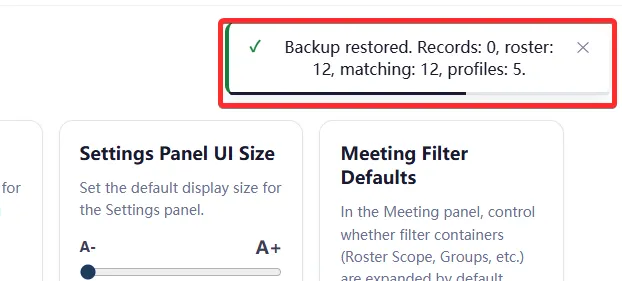 Data successfully restored from file
Sample Preset Files
Section titled “Sample Preset Files”Here are the some preset files you can try. These add the same data as the “Load Example Data” button in the app.