

Roster Management
Define a roster of attendees to link attendance records to specific people. This allows you to quickly find out absent attendees.
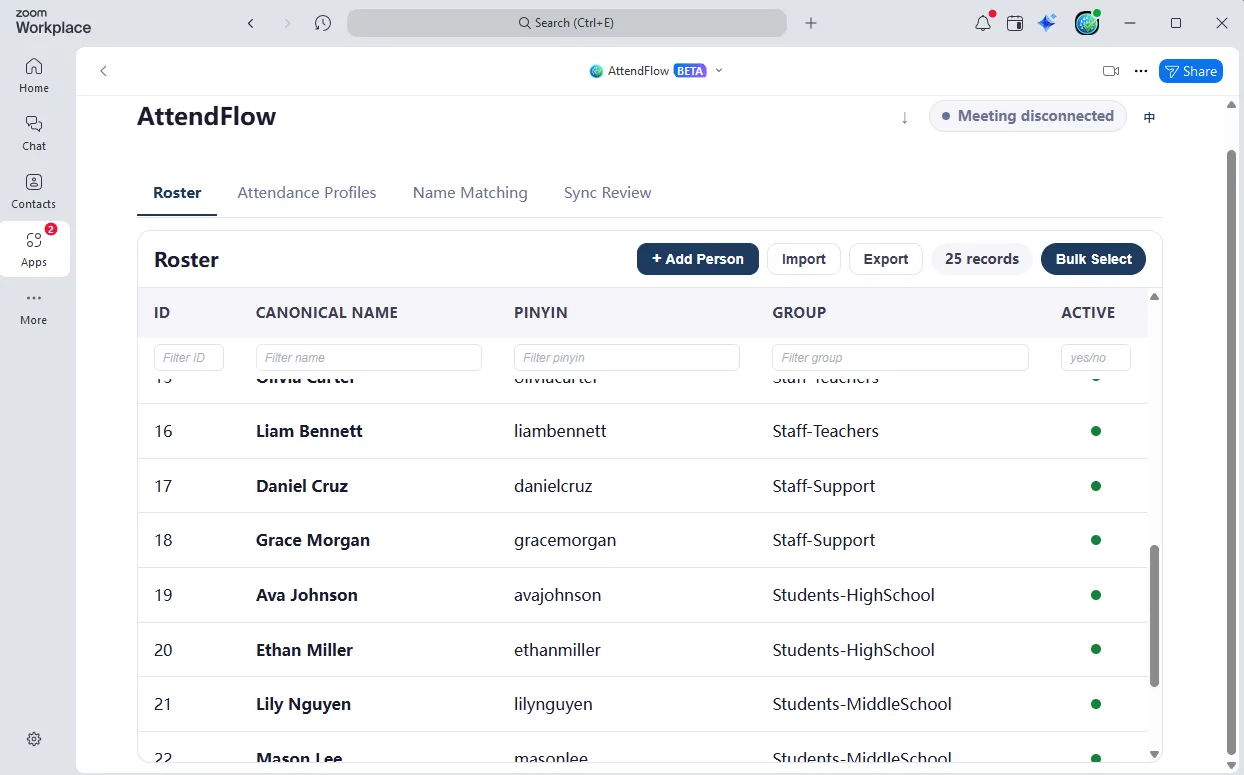 Roster Management page
What you can do
Section titled “What you can do”- Add, edit, or delete roster entries in the editor.
- Bulk edit or delete roster entries in the editor.
- Bulk add, update, or delete roster entries via CSV import.
- Export all roster entries or selected entries.
Validation rules
Section titled “Validation rules”- Canonical names must be unique after normalization.
- personId must be a positive integer when provided.
- delete and active fields accept boolean-like values such as true/false, yes/no, 1/0.
“Canonical” means standard. Think of it as the official name for each person in your roster. The app uses canonical names to link attendance records to roster profiles, so it’s important that they are consistent and unique.
If multiple participants have the same name, try assigning a unique canonical name to each person, such as “John Smith 1” and “John Smith 2” or any other variations. This way you can still distinguish them in attendance records while keeping their display names simple in Zoom.
Important side effect
Section titled “Important side effect”Deleting a roster row can remove linked Name Matching rows for that person.
Adding a roster entry during a live meeting
Section titled “Adding a roster entry during a live meeting”Currently, you cannot add a roster entry in the Meeting Panel. You can, however, add a roster entry in the Roster Management page in the Settings Panel while a meeting is live. After clicking the Sync button in the Meeting Panel, the new roster entry will be available in the Meeting Panel as well.
Related Links
Section titled “Related Links”- Settings Panel Overview – Understand all five settings sections.
- Attendance Profiles – Configure attendance rules for your roster.
- Name Matching – Map Zoom names to canonical roster names.
- First-Time Setup Workflow – Complete setup including roster import.
- Technical Reference: Roster Import Fields – Exact CSV column and field requirements.