Global Settings
Global settings control how AttendFlow displays information and exports data. Configure these once at the start, then adjust as needed for each meeting.
In the app UI, these controls live under Other Settings in the Settings Panel.
UI Language
Section titled “UI Language”The UI language setting controls all menus, labels, and button text throughout the app in both the Meeting Panel and the Settings Panel.
AttendFlow currently supports two UI languages:
- Chinese
- English
Access this setting on the top right of the app.
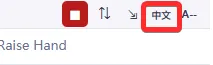 UI language toggle in Meeting Panel
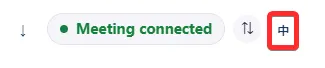 UI language toggle in Settings Panel
Export Language
Section titled “Export Language”The export language controls how attendance records CSV files are labeled and organized. This is independent of your UI language—you might prefer to read the interface in Chinese but export records with English headers.
- Chinese: CSV column headers are in Chinese (e.g., 姓名, 分组, 启用). Useful for Chinese-first reporting.
- English: CSV column headers are in English (e.g., canonicalName, group, active).
See Attendance Records CSV Columns for exact header names in each language.
Access this setting in Settings Panel > Other Settings > Export Language.
Meeting UI Size (Default)
Section titled “Meeting UI Size (Default)”The Meeting UI Size controls the visual scale of tables, buttons, and text in live meetings. A larger size is useful if you’re presenting on a projector or viewing from a distance; a smaller size fits more data on one screen.
There are 5 size options:
- Compact (Default)
- Medium
- Large
- Extra Large
- Maximum
This setting is a default for the next meeting. You can also adjust the Meeting Panel UI size on-the-fly during a live meeting by clicking the A+/A- icon in the Meeting Panel header.
Access this setting in Settings Panel > Other Settings > Meeting UI Size Default.
Settings Panel UI Size
Section titled “Settings Panel UI Size”The Settings Panel UI Size controls the scale of text and buttons in the app’s main interface (outside of meetings). This is useful if you spend a lot of time in the Settings Panel managing rosters, profiles, or attendance records.
There are 5 size options:
- Compact (Default)
- Medium
- Large
- Extra Large
- Maximum
Access this setting in Settings Panel > Other Settings > Settings Panel UI Size.
Filter Defaults
Section titled “Filter Defaults”Filter defaults control whether filters in the Meeting Panel start in the open or closed position.
- Open: Shows all filters (group, status, etc.) in the filter stack above the table. Takes up more vertical space, but lets you adjust filters right away.
- Closed: Hides the filter drawer, giving you more screen space for the table.
Access this setting in Settings Panel > Other Settings > Filter Default.
Related Links
Section titled “Related Links”- Other Settings – Use the Settings Panel page for these controls.
- Key Concepts – Understand attendance records, modes, and matching.
- First Meeting Quick Run – Complete your first meeting end-to-end.