Overview
What is AttendFlow?
Section titled “What is AttendFlow?”AttendFlow is a Zoom app for hosts and co-hosts. It helps you track who attended your meeting, and when they arrived or left. When the meeting ends, you export a detailed record of attendance for reporting, compliance, or follow-up actions. Other helpful features including tracking hand raises.
Key capabilities:
- Monitor attendance in real-time during a meeting (live status updates).
- Manually record snapshot attendance at any time.
- Add roster data to distinguish expected attendees from guests and find out absentees.
- Map Zoom user names to canonical roster names via Name Matching.
- Use Attendance Profile to define groups of expected attendees, and auto select profile based on Zoom Meeting Topic or ID.
- Track hand raises and capture snapshots of attendees who raise hands.
- Export comprehensive captured data (attendance records) in JSON or CSV format.
- Import previous attendance records and other app data or restore full backups.
You need Host/Co-Host permission during a meeting to use this app. However, you do not have to be the original Host. Using a Host Key or being assigned Co-Host during meeting will also work.
How this guide is organized
Section titled “How this guide is organized”This guide is organized by where you work:
Meeting Panel
Section titled “Meeting Panel”When you’re in a live meeting, you work in the Meeting Panel. This is where you see live participant statuses, take manual attendance records, and track entries/exits in real time. See Meeting Panel Overview to learn the four main tabs in Meeting Panel.
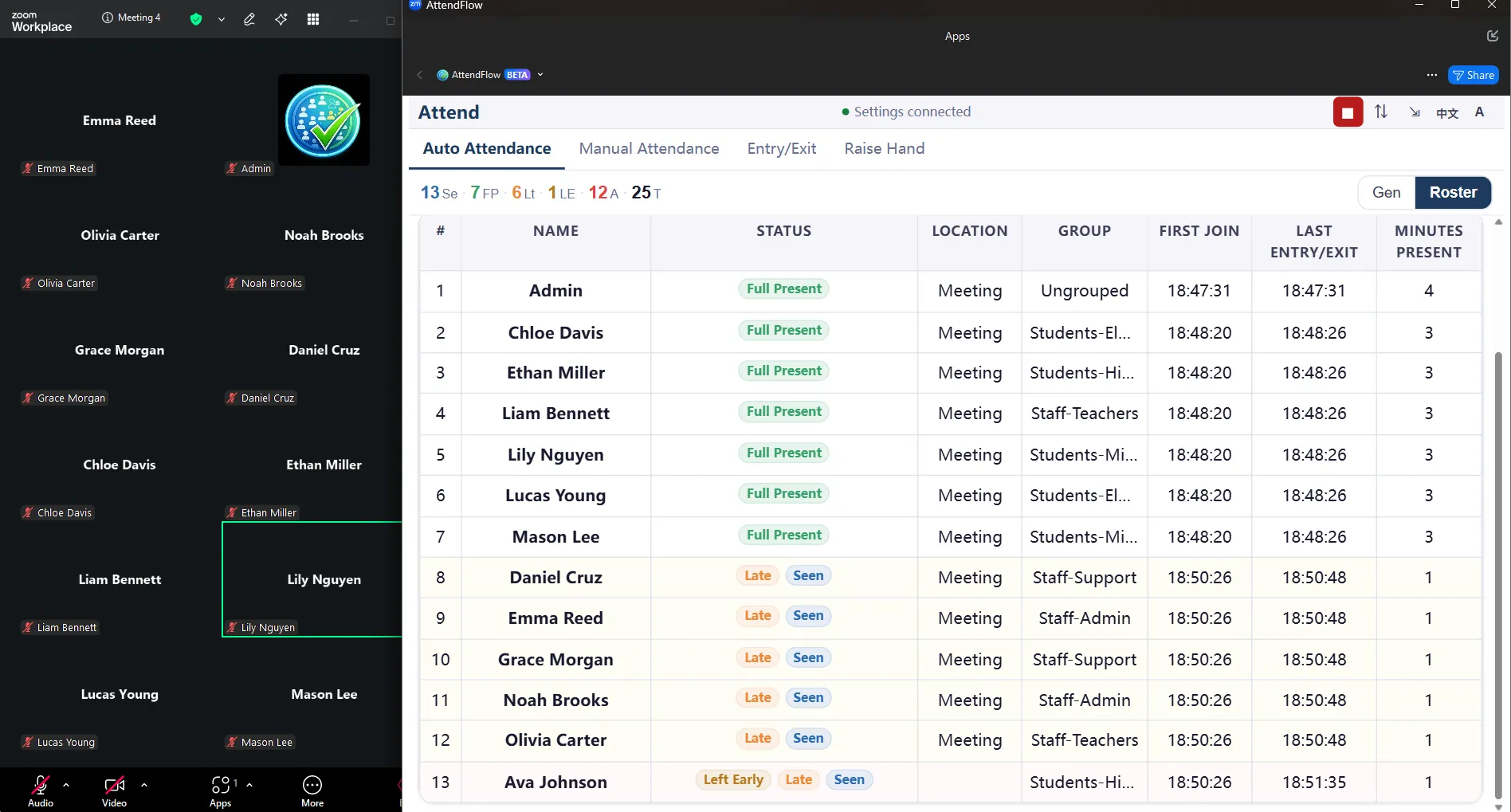 Meeting Panel (Zoom Meeting runtime)
Settings Panel
Section titled “Settings Panel”Before or after meetings, you work in the Settings Panel (the app’s main interface outside of meetings). This is where you:
- Upload and manage your roster.
- Create Attendance Profiles (late threshold, expected groups, etc.).
- Set up Name Matching to map Zoom names to roster names.
- Browse and export past attendance records.
- Import attendance records or backups.
- Adjust defaults in Other Settings (language, UI size, filter defaults).
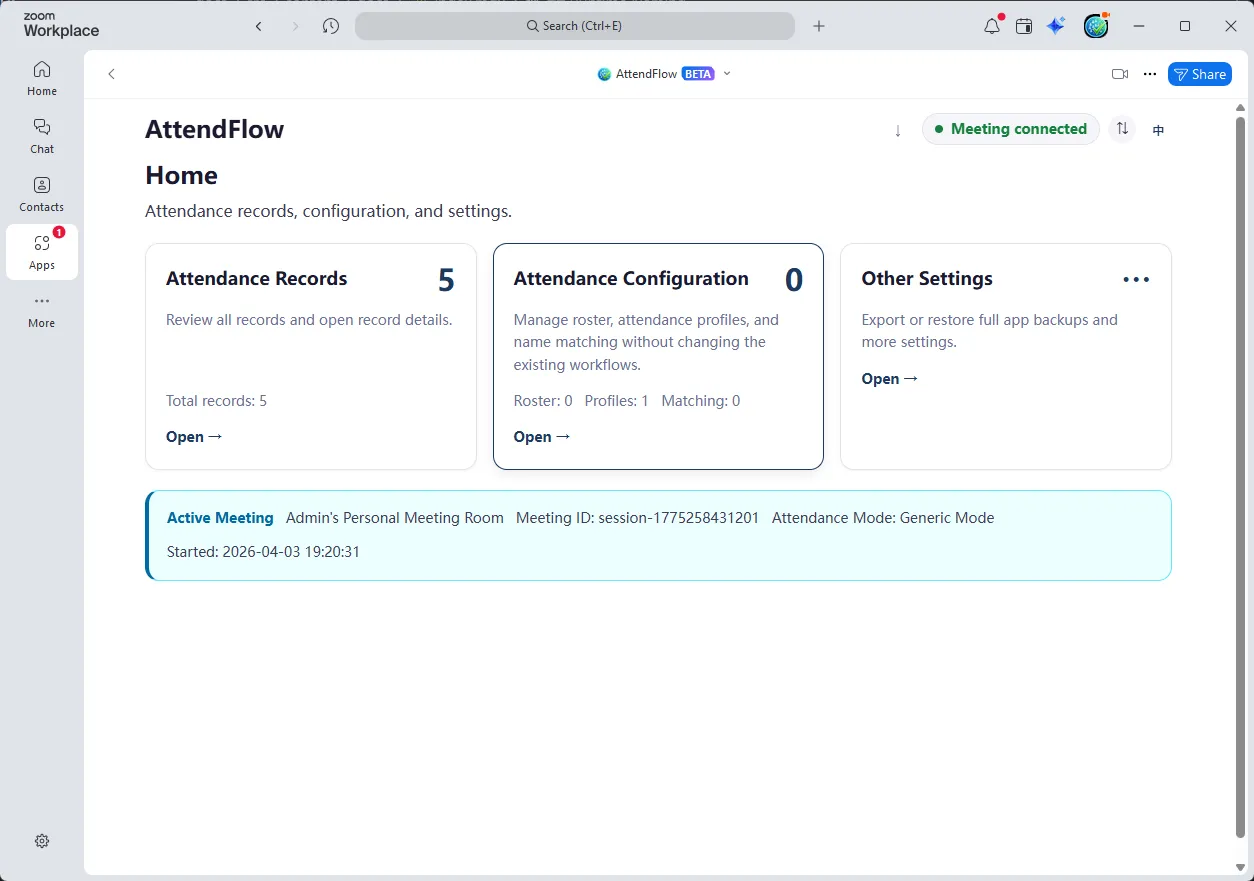 Settings Panel (Zoom Main Client runtime)
See Settings Panel Overview to learn the five main sections.
Runtime naming note
Section titled “Runtime naming note”- Meeting Panel = Zoom Meeting runtime (the interface active during a live meeting).
- Settings Panel = Zoom Main Client runtime (the app main interface outside of meetings).
This distinction helps explain which interface you use for each task.
Everything you see in this guide
Section titled “Everything you see in this guide”- Getting Started: Install, launch, configure settings defaults, learn key concepts, then complete your first meeting.
- Meeting Panel: Operate during live meetings—read statuses, take manual attendance records, track entry/exit, handle raised hands, troubleshoot.
- Settings Panel : Manage rosters, profiles, Name Matching, export/import Attendance Records, adjust settings, troubleshoot.
- Workflows: Step-by-step task guides (first-time setup, generic vs. Roster Mode, Name Matching, export/import cycles, cleanup).
- Reference: Glossary, FAQ, and support contact.
- Technical Reference: Detailed field-level documentation for JSON, CSV, and import formats—use this when you need exact field names or validation rules.
Next steps
Section titled “Next steps”-
First time using AttendFlow?
→ Go to Install and Launch to add the app to your Zoom account. -
Ready to start?
→ Go to Global Settings to configure language and UI size in Other Settings. -
Want to understand how it all works?
→ Go to Key Concepts to learn the terms and features. -
Running your first meeting now?
→ Go to First Meeting Quick Run for a quick end-to-end walkthrough. -
Remove the app?
→ Go to Uninstalling AttendFlow for instructions.