
Attendance Profiles
Attendance Profiles define some of the attendance logic used by the tracker.
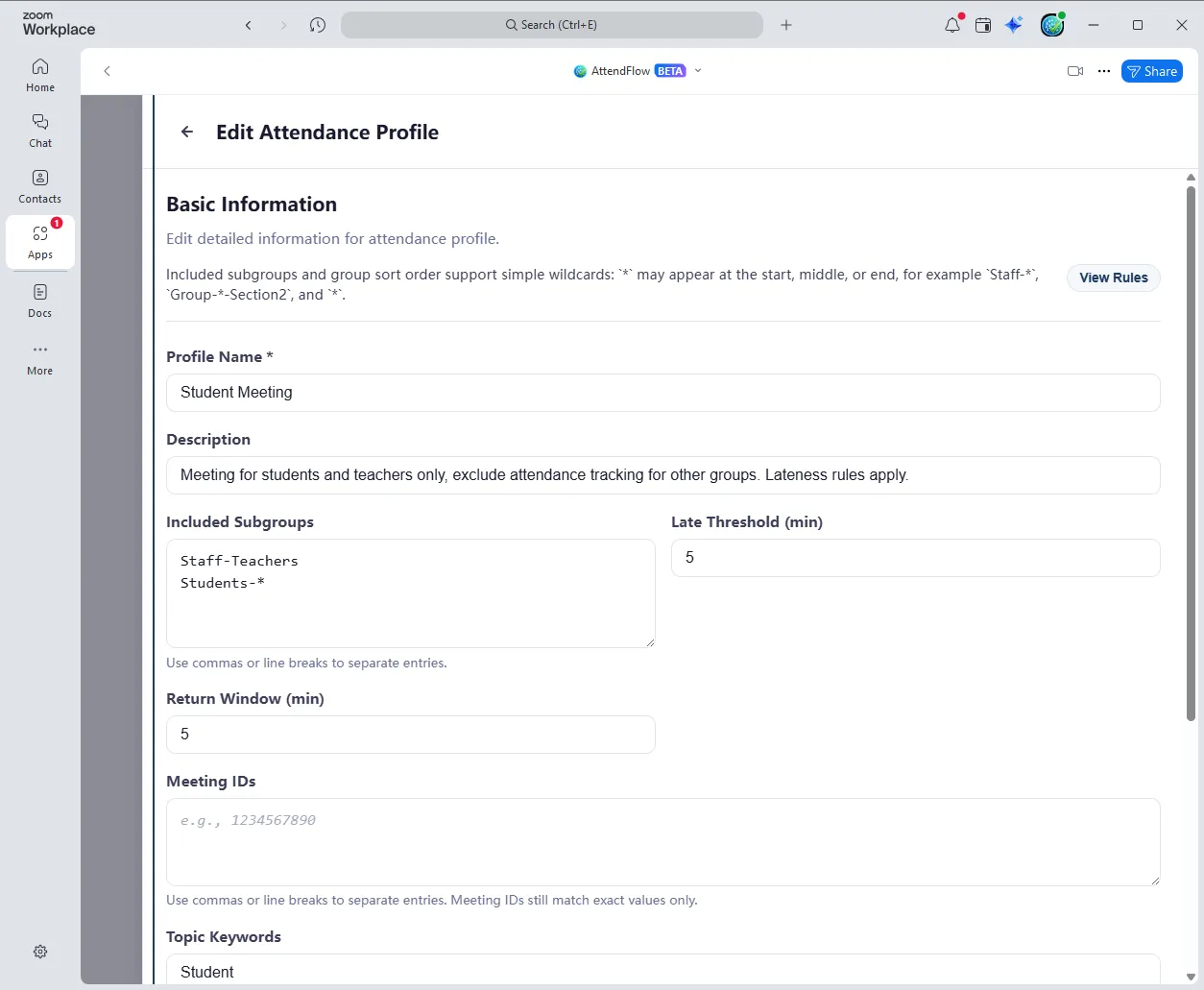 Attendance Profile editor showing fields for attendance logic and profile matching behavior
Core profile fields
Section titled “Core profile fields”- Name and description: For your reference to identify the profile’s purpose and rules.
- Active state: Indicates whether the profile is currently active and should be applied to relevant meetings.
Fields for attendance logic:
Section titled “Fields for attendance logic:”- Included subgroups: Specify which groups are included in this profile. Only attendees matching these groups will be expected for this profile. This allows you to have different profiles for different subsets of your roster.
- Late after minutes: How many minutes after the meeting start time before an attendee is marked “Late” instead of “Full Present”.
- Return window minutes: How many minutes of absence before a re-joining attendee is marked “Returned” instead of “Full Present”.
Fields for profile matching behavior:
Section titled “Fields for profile matching behavior:”- Meeting IDs: Specify which meeting IDs are associated with this profile. Only attendance records for these meetings will be evaluated against this profile.
- Topic keywords: Define keywords to match against meeting topics. Only meetings with matching topics will be considered for this profile.
Other fields
Section titled “Other fields”- Group Sort Order: Determines the order in which groups are displayed in the attendance table by default. Sort order can also be changed on the fly.
Profile matching behavior
Section titled “Profile matching behavior”Groups
Section titled “Groups”Group matching rules (“Included subgroups” and “Group sorting order”) can use wildcards. For example, if you have groups “Team A”, “Team B”, and “Managers”, you could create a profile that includes “Team *” to include both Team A and Team B but not Managers.
However, only the asterisk (*) is supported, but it can be used anywhere in the group name (beginning, middle, end).
Meeting IDs and Topic Keywords
Section titled “Meeting IDs and Topic Keywords”Meeting IDs are matched by exact comparison. Topic keywords are matched by substring search (case-insensitive).
Meeting IDs will take precedence over topic keywords.
Changing Profiles during a meeting
Section titled “Changing Profiles during a meeting”You can change a profile during a live meeting from the Meeting Panel. This will also change the return window and late threshold for that meeting on-the-fly.
When you directly change the return window or late threshold from the Meeting Panel, it will not change the profile’s “included subgroups”. Think of Profile as a template.
All attendance records will be recalculated based on the new profile or thresholds.
Adding, editing, and deleting profiles
Section titled “Adding, editing, and deleting profiles”You can:
- Add, edit, or delete profiles in the profile editor.
- Bulk edit or delete profiles in the editor.
- Add, update, or delete profiles in bulk via JSON import.
- Export all profiles or selected profiles.
Related Links
Section titled “Related Links”- Settings Panel Overview – Understand all settings sections.
- Key Concepts – Learn about profiles and statuses.
- First-Time Setup Workflow – Create profiles as part of setup.
- Roster Management – Upload roster to use with profiles.
- Technical Reference: Import/Export Behavior – How profiles affect records.
- Return window affects returned vs left early semantics.
- Included subgroups change expected vs out-of-scope counting.